Showing posts with label update. Show all posts

Wednesday, January 8, 2020

New Features Announced for Zoom

In their latest update Zoom, our supported video conferencing software has announced several new features that may be of interest to our campus users. While the full list can be found in the announcement on their website, we'd like to highlight a few below. Note: there are separate announcements for macOS and Windows versions.

Meeting Reactions

Meeting participants can now react during a meeting by sending a thumbs up or clapping to communicate without interrupting the meeting. Reactions show up right in the video and will disappear after 5 seconds.

View Another Participant's Audio Status

Users can now more quickly view another participant’s audio status when they are joining a meeting. In both gallery view and speaker view, it will display “Connecting Audio” below a participant’s video until that participant has joined the audio, making it more clear when they connect and can hear you.

Virtual Background Selection within Video Preview

The video preview will now contain an option to select a virtual background in the client settings, so the user can choose a virtual background within video preview before joining the meeting.

Contact Me Option for Feedback

Users can now choose to include their email address when sharing feedback after a meeting if they would like to be contacted.


If you would like more information about getting connected with Zoom and to request a Zoom Pro license, please contact the IT Service Desk at itservice@lclark.edu.

Related:

Tuesday, January 22, 2019

Zoom Updates for Spring 2019


Don't be surprised if the next time you launch Zoom you're prompted to update - this isn't a routine bug fix update, but instead is full of new useful features. Highlights include a streamlined client for scheduling meetings and more options for meeting hosts such as virtual backgrounds, options to manage participants' screen shares, annotation enhancements, and more. For a full list, check out the release notes. We'd love to hear what you think of the new Zoom!

Monday, January 14, 2019

3D Campus Visualization Project

Each blue square represents a photo taken from an aerial drone


Over the last semester, EdTech hired a student, Keegan Millbern '19, to create 3D images of academic buildings on the Lewis & Clark campus.  Keegan spoke of his interest in a technique called Photogrammetry which uses everyday photos of an object to create a 3D file that may be rotated and viewed from all angles.

The first trick is taking photos of a building from all angles--that means above the building and the upper stories.  To accomplish this, drone photography is ideal.  Because a good, modern drone has GPS sensors to keep it stationary, all that needs doing is to fly the drone at a chosen elevation and take hundreds of photos, change elevation and take even more photos!

The photos are then loaded into software called Agisoft Photoscan, which compiles the photos into a rough 3D representation of the building.  Ok, so there's quite a bit of refinement and massaging that happens, but eventually you end up with the 3D model of the building.

Keegan has completed several models so far and will continue working on them through the spring.  We in EdTech hope to use the models as part of a repository of digital assets that could be used for future projects involving Virtual/Augmented Reality tours, or simulations of natural disasters, or even campus facilities planning needs.

Click the link to see a video showcasing the models and methodology--Enjoy!

https://drive.google.com/a/lclark.edu/file/d/19YAlAMggPHpyI_qMAh5s60rKuG3K0wSQ/view?usp=sharing


Wednesday, April 25, 2018

Google Ending Support for Google Drive Desktop May 12th, 2018

Google will officially shut down Google Drive Desktop on May 12, 2018 and has offered two replacement options: Google Backup & Sync and Google Drive File Stream. 


IT recommends that users who wish to continue to have desktop access to their lclark Google Drive use Google Drive File Stream. Google Backup & Sync is the recommended option for personal (gmail.com) Google accounts.

Google Drive File Stream is a flexible sync tool designed for G Suite for Education users. Similar to using a network share drive, it makes your Google Drive available through mounting your drive, giving you access to your entire drive while you're connected to the internet. If you're concerned about not having internet access, you have the option to make specific folders available offline. To do that, once installed, you would navigate to the folder on your computer, right-click the file or folder you wish to make available offline, and select Drive File Stream > Available Offline.


Uninstall instructions are available here for Google Drive Desktop. Google provides help documentation for Google Drive File Stream, but feel free to reach out to the IT Service Desk if you have additional questions.

Friday, March 23, 2018

Lightboard at the Grad School


A few weeks ago, EdTech brought the lightboard to the Graduate School!


Faculty, staff, and students were able to stop by York Commons to check it out, take a look at how it worked, and try it out for themselves.

Many excited students came by to play with the board and chat about some great ideas for implementing the board in their schools and counseling centers. Along with having the chance to write on the board with our colorful neon markers, students were also able to see how the lightboard effectively functioned in a classroom.

We pointed a camera towards the lightboard and showed the camera’s image on the TV in York Commons. Since people on the other side of the lightboard would see the writing backwards, the TV acted as a way to see what was being written on the board. The image on the TV was flipped horizontally, and those watching the lightboard during lectures could watch the TV, or a projector screen, to see both the person behind the lightboard, as well as the writing.

Students also had a chance to watch some recorded lightboard lectures created by Lewis and Clark College faculty. Recordings have become one of the lightboard's primary functions, allowing instructors to cover content outside of class in an interesting and interactive way, and then provide the recordings to the class for homework or study material. Some members of the LC community have recorded lectures in our TV Studio and shared them with their classes with much success.


As graduate students think about using the lightboard in their own classrooms and counseling spaces, we hope this success will continue to grow!

The TV Studio will be available for lightboard lecture recording over the week of March 26th - March 30th.

If you would like more information about the lightboard, or would like to schedule a time to record a lightboard lecture, please contact EdTech, at edtech@lclark.edu

Thursday, January 18, 2018

New Moodle Filtered Course List Block

With last Summer's Moodle 3.3 upgrade came changes to the Course Overview block. Some of our users have expressed these changes made it more difficult to identify and locate current courses in-progress. This is partly due to the new Course Overview area using course start and end dates to classify courses.

To address this issue we have installed a new "Filtered Course List" block, which users may optionally enable on their end. Within the block, you will see two filtered categories. The first category, expanded by default, displays current term and list your current classes. The second category, Other Courses, contains past Moodle courses in reverse chronological order. Keep in mind that past courses will only be visible if you are the instructor or if the courses is made available to you by the instructor.

To activate the plugin:

1) From your dashboard (moodle.lclark.edu/my/) click the orange Customize this page button in the corner

2)  Scroll to the bottom and select "Filtered Course List" from the Add a Block drop-down.

If you have any feedback regarding the plugin or run into any difficulty installing it, feel free to let us know at edtech@lclark.edu.


Thursday, October 19, 2017

Useful New Updates to Google Slides and Sheets

While Google continuously announces new updates to G Suite, there is often a delay before these updates appear on our lclark.edu domain. Here are a couple recent Google updates that have recently gone live that may be of interest to our users!

Create custom headers and footers in Google Sheets (10/10/2017)

“You can customize the headers and footers in your Google Sheets documents with the text of your choosing. In addition, you can select from many more pre-defined options (for date, time, etc.) and move those options around within your header and footer. Simply choose “EDIT CUSTOM FIELDS” from the Print settings menu to get started.”


New Updates in Slides Designed to Make You Look Good (9/27/2017)

Google has introduced slew of new updates designed to improve the ease of getting data into slides and keeping it up-to-date. These include:

  • Linking slides between presentations so updating one slide updates the same slide used in other presentations
  • Easily importing information from Google Keep note-taking application.
  • More options for images using add-ins for Shutterstock and Adobe Stock

New Google Slides Integration with PearDeck Chrome Extension  (10/12/2017)

After introducing PearDeck over the summer as our new supported polling solution, there have been questions about it's integration with other presentation tools. As of last week, PearDeck has introduced an extension for Google Chrome that enables integration of PearDeck polling features.


Tuesday, September 12, 2017

Resource Lab Refresh

This summer we've refreshed Resource Lab equipment and software.  The updates include new 27" iMacs with retina screens that can handle 4k video editing, virtual reality development, and 3D modeling.   Software upgrades include the addition of the full Adobe Creative Suite on each machine. That means all of the computers have the most recent versions of Photoshop, Premiere, Illustrator, Lightroom--there are really too many to list, so check it out here.

Another excellent upgrade is the addition of a Lulzbot Taz 6 3D printer.  This printer will allow us to print a wider range of materials like magnetic plastic, circuit printing media, and industrial strength plastics.
Ain't she a beauty


LC community members are encouraged to try out the printer. Where to start? There are loads of free models available from sites like Thingiverse that you may download and print.  If you're worried about costs, don't be!  3D printing is deducted from your LC print balance.  The process to get your print is easier than you might think. Either visit the Resource Lab with a file in hand, or send a file with a print request to itservice@lclark.edu.  We'll help you prep and print the file, or let you know if it's just not something our printer can handle.

So that's what's new in the Rlab.  Don't forget we still have fabulous color printers available to create your academic posters and photo projects.  Give us a call at 503-768-7225 for more information.

Friday, September 8, 2017

Theme Quirks in Moodle 3.3

With a new software upgrade comes new features and functionality as well as unforeseen issues. We know many Moodle users prefer to use alternate themes (Administration > Edit Settings > Appearance > Force Theme) to customize the look and feel of their courses. Unfortunately, some of our non-responsive themes are not playing nice with upgrades.

For example, users have reported when adding users in Moodle 3.3 using the Nonzero theme, the “Enroll Users” window appears transparent.


While it may be difficult to see, the “Enroll users” function still works as normal. Be advised, however, that these design quirks may appear in other aspects of the theme, as well as in other older themes.

While ignoring some of these visual quirks is one option, you may also consider trying a different theme. The new “Boost” Theme features a clean design that maximizes screen space and includes dynamic navigation tools such as a left sidebar that may be toggled on or off.


Wednesday, September 6, 2017

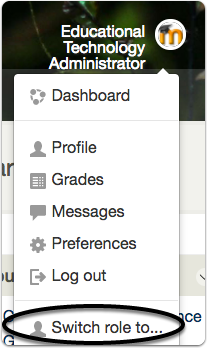
Moodle 3.3 - New Location for Switch Role & Grades


Moodle 3.3 has new locations for Switch Roles and Grades 


Switch Roles is now located in the user menu which is located in the top right of the screen in most themes. This menu is not supported by older themes.


To view grades for the current course, use the Grades link in the Navigation menu. To see a list of all enrolled course gradebooks, use the Grades link in the User Menu.
Grades link in new Boost theme


Grades link in default Moodle theme


Tuesday, August 22, 2017

Moodle Upgraded for 2017-18 Academic Year

Moodle will run 3.3 for the 2017-18 academic year. Below we've highlighted major changes and new features.


For all users

  • Dashboard includes a redesigned Course Overview block.  
    • Completed courses or those whose end date have passed appear in the ‘Past’ section.
    • Courses appear in the ‘In Progress’ section if the course start date is in the past and the current date is before the end date OR there is no end date. Keep in mind you may see several courses in this section as migrated courses initially will not have end dates - this is a new setting.
    • For courses to appear in the 'Future' section, the student must be enrolled in them even though the course start date is in the future.
    • Some of the new timeline tracking features will require teachers to set activity deadlines, expected completion dates, or “remind me to grade by” dates.
  • New messaging and notification options. Messages now support media filters for embedding images and video.
  • Improved support for Moodle Mobile app. See Moodle Mobile Features for complete details. Teachers may want to view tips for creating mobile friendly courses.

Teachers

  • Course Settings:
    • Courses can now have end dates. This is used to indicate when a course should appear in the ‘Past’ section of the Course Overview block.
    • The number of course sections can no longer be set in course settings. Add or delete sections directly from the course page. Weekly format includes an option to automatically add sections based on the start and end date of your course. This will prevent the orphaning of course content.
  • Assignments
    • Restrict assignment submissions to specific file types such as a Word (docx).
    • Expansion of individual or group overrides to assignments. Easily change or “override” deadlines or other assignment settings for individuals or groups.
    • Set ‘grade by’ reminder in assignments. Turn this on to see alerts on assignments to grade in the new course overview block.
    • Negative scores for rubrics.
  • Bulk edit activity completion settings in your courses and change default settings for new activities. Watch the activity completion enhancements screencast for a walkthrough.
  • Media player improvements including new default player, VideoJS. The Media players screencast describes new options for managing files including displaying thumbnails and adding captions. Drag and drop media files directly to course page or as a file resource.
  • New stealth mode allows teachers to make hidden content available. This is useful if you want to link to content or activities that don’t appear to students in the main page.
  • New theme option, Boost, is available for early adopters. It takes advantage of new icons and has an updated navigation scheme. We will work on updating the default theme to Boost over the 2017-18 academic year.
  • Lock discussion forums automatically after a period of inactivity.
  • Select for students in the choice activity.
  • Improvements to report charts.

See the following release notes for a complete list:
New Features for Moodle 3.3